

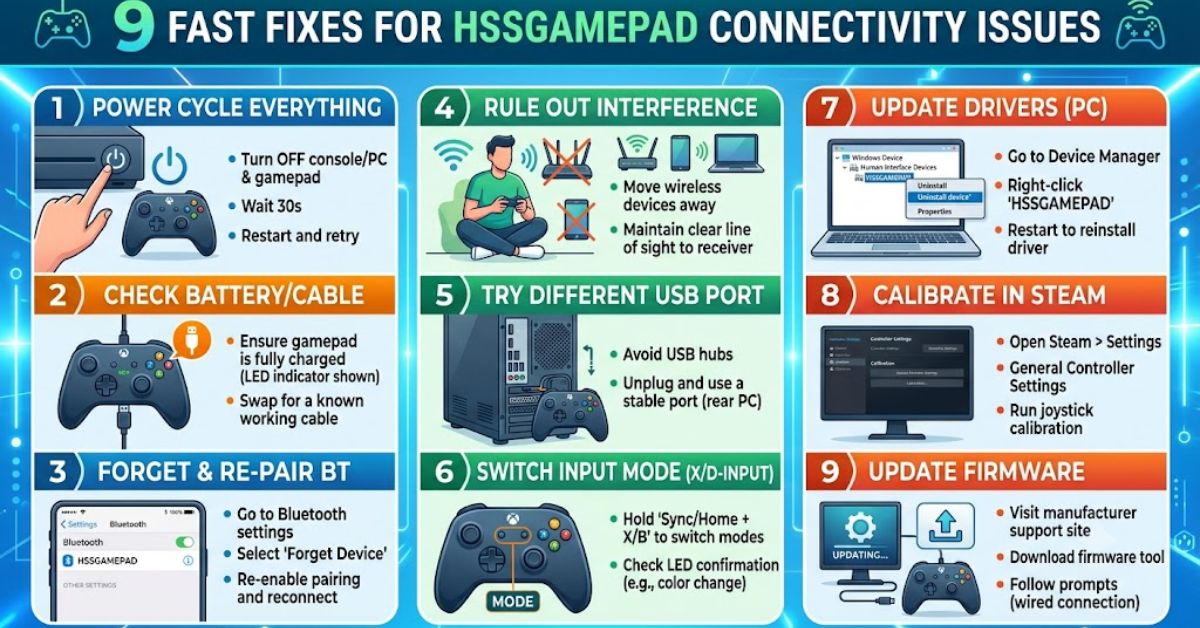
Connectivity Issues HSSGamepad users experience usually come down to three areas: power, pairing mode, or device configuration. A controller may appear in Bluetooth settings yet fail inside a game, or it may connect briefly and drop after a few minutes. Start with simple checks before installing software. A full charge, a clean Bluetooth pairing, and the correct startup button combination solve many connection problems without changing advanced settings.
This guide covers HSSGamepad Bluetooth problems on Android and Windows PCs, including USB testing, driver updates, input-mode conflicts, and game detection. Because pairing shortcuts can differ by controller revision, treat combinations such as Home + X or Home + A as examples, not universal commands. Check the label, packaging, or manual for your exact model before assuming the controller is defective.
Diagnose Connectivity Issues HSSGamepad Quickly
Before changing settings, identify what is actually failing. If the controller never appears in the Bluetooth list, the likely problem is power, discovery mode, distance, or an existing connection to another device. If it appears as connected but buttons do nothing, the issue is more likely the selected input mode, game compatibility, or Windows input handling. A wired test quickly separates wireless trouble from a broader controller problem.
Watch the controller’s indicator light while testing. A rapidly blinking light commonly suggests pairing or discovery, while a steady light often indicates an established connection, although patterns vary by model. Also check whether the gamepad reconnects automatically to a nearby phone, tablet, TV, or PC. Turning Bluetooth off on previously paired devices can stop them from taking the connection before your current device completes pairing.
| Symptom | Likely Cause | First Test |
| Controller does not appear | Wrong pairing mode or low battery | Charge it and restart pairing mode |
| Appears but will not connect | Corrupted saved pairing | Forget the device and pair again |
| Connects but buttons do nothing | Wrong input mode or unsupported game | Test in another game or controller tool |
| Disconnects after a few minutes | Low power, interference, or power saving | Fully charge and test near the device |
| Works with USB only | Bluetooth adapter or wireless issue | Update the Bluetooth driver |
| Works in Windows but not in a game | DirectInput and XInput conflict | Check game support or use a wrapper |
Try These Fast Bluetooth Pairing Fixes

For most connectivity issues HSSGamepad owners should begin with a complete pairing reset. Charge the controller, turn it off, remove its saved Bluetooth entry, and restart the phone or computer. Then activate the correct platform mode and search for the controller again. Google’s Android guidance also recommends toggling Bluetooth, restarting devices, forgetting saved accessories, and making sure the accessory is discoverable before pairing again.
Keep the controller close to the host device during setup and disconnect unnecessary Bluetooth accessories temporarily. Do not keep pressing several startup combinations randomly, because each mode may advertise a different device profile. Instead, power the controller off between attempts and test one documented mode at a time. Once it connects, open a controller-compatible game or testing screen to confirm that the buttons and analog sticks are sending input.
Use this quick pairing checklist:
- Fully charge the HSSGamepad.
- Turn off Bluetooth on previously connected devices.
- Remove or forget the old HSSGamepad entry.
- Restart the controller and host device.
- Turn Bluetooth off and back on.
- Activate the correct Android or PC pairing mode.
- Keep the controller close during pairing.
- Test it in a game with native controller support.
Avoid pairing the controller with several devices at the same time. Some controllers automatically reconnect to the last device they used, which can make the new phone or PC appear unable to find them.
Fix HSSGamepad on a Windows PC
When HSSGamepad connects to Windows but games ignore it, first confirm that Windows receives button input. Press Windows + R, enter joy.cpl, select the controller, and open Properties to test its buttons and axes. Microsoft documents the Game Controllers panel as a way to verify controller functionality. If inputs register there, Bluetooth is working and the remaining problem is usually the game’s controller support or input standard.
If the controller does not appear correctly, update the PC’s Bluetooth adapter through Device Manager, install Windows updates, and restart. Microsoft advises updating, reinstalling, or rolling back the Bluetooth driver when connection problems continue, and notes that the PC maker may provide a newer driver than Windows finds automatically. Remove the controller from Bluetooth settings and pair it again after the driver work is complete.
Follow these Windows troubleshooting steps:
- Connect the gamepad and press Windows + R.
- Type
joy.cpland press Enter. - Select the controller and choose Properties.
- Test the buttons, triggers, D-pad, and analog sticks.
- Open Device Manager if the controller does not respond.
- Expand Bluetooth and right-click the Bluetooth adapter.
- Select Update driver and search automatically.
- Restart Windows and pair the controller again.
If Windows detects the controller but only certain games ignore it, check whether the game supports generic DirectInput controllers. Steam Input or the game’s built-in controller settings may solve the problem without additional software.
Fix HSSGamepad on Android

For connectivity issues HSSGamepad on Android, begin in Settings under Connected devices or Bluetooth. Forget the saved controller, refresh the accessory list, and pair it while the gamepad is visibly in discovery mode. Menu names vary by phone brand, but Google’s current Android instructions follow the same basic sequence. Restarting both devices is safer than repeatedly toggling random settings, especially when the controller previously worked and suddenly stopped connecting.
If the gamepad disconnects after the screen dims, review Battery Saver and app battery restrictions. Android battery-saving features can limit background activity and delay some connections or app behavior, so test with Battery Saver disabled before changing permanent settings. For games without native controller support, use a reputable key-mapping app only after reviewing its permissions, privacy information, game rules, and support for analog sticks or triggers.
Try this Android sequence:
- Open Settings and select Connected devices.
- Open Bluetooth or Saved devices.
- Choose HSSGamepad and tap Forget.
- Restart the phone and controller.
- Activate the controller’s Android pairing mode.
- Select Pair new device.
- Tap HSSGamepad when it appears.
- Test it in a game with native gamepad support.
Do not assume the Bluetooth connection is faulty when only one game has a problem. Some Android games support menus through touch controls but do not recognize external controllers during gameplay.
Key-mapping apps may provide on-screen touch mapping for unsupported games, but they can require accessibility or overlay permissions. Read the Play Store data-safety section and confirm that using a mapper does not violate the game’s rules.
Solve Lag, Random Drops, and Game Detection
A controller that works over USB but not Bluetooth points toward the host adapter, wireless interference, saved pairing data, or the controller’s radio. A controller that fails in both wired and wireless modes may have a bad cable, damaged port, low battery, firmware problem, or hardware fault. Try another data-capable USB cable and another port, because some charging cables provide power but do not carry controller data.
On Windows, some generic controllers communicate through DirectInput while newer games expect XInput. XOutput can translate DirectInput signals into a virtual XInput controller, but its GitHub project warns that the current branch is deprecated and directs users to the supported 3.x version. Download tools only from the official project source, create a restore point, and avoid third-party download pages that bundle unknown installers.
| Connection Method | Best Use | What the Result Tells You |
| Bluetooth | Normal wireless gaming | Tests pairing, radio, adapter, and interference |
| USB data cable | Diagnosing wireless failure | Confirms whether the controller can send input |
| Different USB port | Detecting port problems | Rules out a damaged or low-power port |
| Another phone or PC | Isolating the host device | Shows whether the issue follows the controller |
| Native controller-supported game | Testing compatibility | Separates connection issues from key-mapping issues |
| Windows joy.cpl | Testing raw controller input | Confirms whether Windows receives button signals |
To reduce Bluetooth lag and random disconnections:
- Keep the controller within a reasonable distance.
- Move away from crowded wireless equipment.
- Disconnect unused Bluetooth accessories.
- Avoid placing the controller behind a desktop case or television.
- Charge the controller before long sessions.
- Update the PC’s Bluetooth adapter driver.
- Test with Wi-Fi equipment positioned farther away.
- Close duplicate controller-mapping programs.
Do not run several input tools at once. Steam Input, XOutput, manufacturer software, emulator mappings, and in-game controller profiles can conflict or create duplicate button presses.
Conclusion
Most connectivity issues HSSGamepad users face can be fixed without replacing the controller. Fully charge it, forget the old Bluetooth record, choose the correct platform mode, and pair again from a clean start. On Windows, test with joy.cpl and update the Bluetooth adapter driver. On Android, restart the connection, review battery restrictions, and confirm that the game itself supports external controllers.
If the controller still fails, compare wired and wireless behavior to narrow the cause. Successful USB input points to Bluetooth or pairing; failure in both modes suggests the cable, port, configuration, or hardware needs closer attention. Avoid treating one button combination or mapping utility as a universal solution. The fastest repair comes from testing one variable at a time and following the instructions for the exact HSSGamepad model.