


Somewhere between “I’ll just work from the couch today” and three weeks of a genuinely sore neck, most remote workers learn the same lesson: your remote work setup isn’t a nice-to-have, it’s the thing that decides whether working from home actually works.
A good setup does three jobs at once. It protects your body over years of sitting and typing. It removes the small daily friction — bad Wi-Fi, a dying laptop battery, a keyboard you can’t stand — that quietly drains your focus. And it draws a line between “home” and “work,” which matters more than people expect once the two start blurring together.
This guide walks through everything that goes into a remote work setup that holds up long-term: the furniture, the technology, the security basics, and the habits that keep you productive without burning out. There’s also a quick-reference checklist near the end you can save or print.
Why your remote work setup deserves real investment
Hybrid and remote arrangements are no longer a temporary fix — they’re simply how a large share of the workforce operates now. Millions of people split their week between home and an office, and a smaller but significant group works remotely full time. That shift has pushed both employees and employers to think more seriously about what a home workspace actually needs.
A large randomized study of over 1,600 employees at a major tech company found that hybrid work meaningfully raised job satisfaction and cut quit rates by roughly a third, with no measurable drop in performance reviews or promotions (Bloom, Han & Liang, Nature, 2024). That’s part of why companies increasingly offer equipment stipends, reimbursements, or company-shipped gear rather than leaving people to work from a kitchen chair indefinitely.
But even without employer support, the setup pays for itself. A comfortable, well-equipped workspace reduces the aches that come from hunching over a laptop, cuts the mental fatigue of constant small interruptions, and helps you actually finish your workday instead of it bleeding into the evening.
1. Start with the workspace itself

Before buying anything, settle on where you’re going to work. A spare room with a door is ideal because it creates a clear boundary — when you’re in there, you’re working, and when you leave, you’re not. But a defined corner of a living room or bedroom works too, as long as it’s consistently the same spot rather than wherever you happen to land each morning.
A few things matter more than people expect:
Lighting. Natural light is best for staying alert through the day; harsh fluorescent lighting tends to cause fatigue. If your space is dim, a warm desk lamp beats overhead lighting for video calls and screen work alike.
Temperature. A room that’s too warm makes you drowsy; one that’s too cold has been linked to more typing errors and lost focus. A well-known Cornell University ergonomics study found that raising office temperature from 68°F to 77°F cut typing errors by 44% and boosted output by 150% — which is where the 68–77°F (20–25°C) comfort range below comes from.
Noise control. You don’t need a soundproofed studio, but a door, a rug, or even heavy curtains can cut down on the background noise that makes calls harder and focus shallower.
2. Get the furniture right — it’s not optional
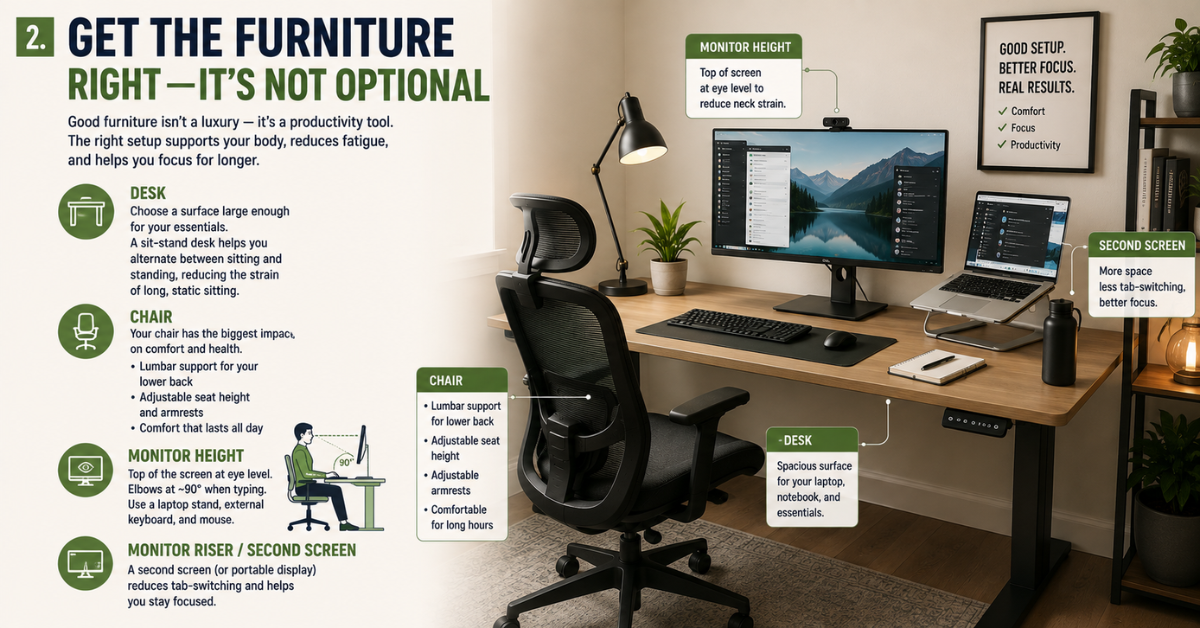
Furniture is where a lot of home setups quietly go wrong. It’s easy to tell yourself the dining chair is “fine for now,” and then still be using it eight months later with a stiff lower back to show for it.
Desk. Look for a surface big enough for your laptop, a notepad, and a water bottle without everything feeling cramped. A sit-stand desk isn’t essential, but alternating between sitting and standing through the day measurably reduces the aches that come from long, static sitting.
Chair. This is the single highest-impact purchase in most home offices. Prioritize:
- Lumbar support that fits the curve of your lower back
- Adjustable seat height and armrests
- A seat depth and material that stays comfortable for hours, not minutes
Monitor height. Whether you use a laptop stand, a separate monitor, or both, the goal is the same: your screen’s top edge should sit roughly at eye level, and your elbows should bend at about 90 degrees when typing. A laptop propped on a stack of books with an external keyboard and mouse gets you most of the way there for very little money.
Monitor riser or second screen. If your work involves comparing documents, referencing notes, or juggling multiple tabs, a second screen (even a small, portable USB-C one) cuts down on the constant tab-switching that breaks concentration.
3. The core technology stack

You don’t need the most expensive gear on the market — you need gear that’s reliable enough to disappear into the background.
Laptop or desktop. Match the machine to the work: a lightweight laptop with strong battery life if you move between rooms or travel, a more powerful desktop if your work is graphics- or data-heavy and you’re staying put.
External keyboard and mouse. Once your laptop sits on a stand, typing directly on it becomes awkward. A wireless keyboard and an ergonomic mouse solve that and are worth spending slightly more on — cheap versions tend to disconnect or wear out fast.
Webcam and headset. Most laptop cameras and microphones are mediocre at best. A dedicated webcam and a headset with a decent microphone make video calls noticeably clearer, both for how you sound and how you’re perceived.
Noise-cancelling headphones. Whether you’re blocking out a noisy household, a shared coworking space, or street noise, a solid pair of noise-cancelling headphones is one of the most-cited “I didn’t know I needed this” purchases among remote workers.
Docking station or USB-C hub. Modern laptops often have frustratingly few ports. A dock or hub lets you connect an external monitor, keyboard, mouse, and charger through a single cable — genuinely useful if you move your laptop often.
Surge protector or UPS. Cheap insurance against power spikes, and a small uninterruptible power supply buys you enough time to save your work and shut down safely during an outage.
4. Reliable internet is non-negotiable

Everything above matters less if your connection can’t keep up. For most remote work — video calls, cloud file syncing, large uploads — aim for a plan with strong, consistent upload speeds, not just download speed, since video calls and file sharing depend heavily on the former.
It’s also worth having a backup: a mobile hotspot or a phone plan with tethering data covers the (inevitable, eventually) day your home internet goes down mid-meeting.
5. Don’t skip the security basics

This is the part of a remote work setup that’s easiest to overlook and most expensive to get wrong. Working from home networks and public Wi-Fi introduces real risk — one 2025 industry survey found 78% of organizations reported at least one security incident tied to remote work that year, which is why most companies now treat basic security hygiene as a baseline requirement, not an optional add-on.
A reasonably secure home setup includes:
- A VPN, especially if you ever connect to public or shared Wi-Fi
- Multifactor authentication on work accounts and anything financially sensitive
- A password manager so you’re not reusing (or forgetting) passwords across dozens of logins
- Antivirus or endpoint protection, kept updated automatically
- Automatic software updates so security patches aren’t sitting unapplied for months
If your company issues a specific security policy, follow it — but even freelancers and solo workers benefit from this basic stack.
6. Productivity and communication tools

The physical setup gets you comfortable; the software layer is what actually keeps work moving. A minimal, non-redundant stack usually covers:
- A communication platform — Slack, Teams, or similar — for day-to-day messaging
- A video conferencing tool — Zoom, Google Meet, or Teams — for calls
- Cloud storage — Google Drive, Dropbox, or OneDrive — so files aren’t trapped on one device
- A project or task manager — even a simple one — to keep track of what’s actually due and when
The goal isn’t to collect tools; it’s to have exactly enough that nothing important lives only in your head or a sticky note.
7. Habits that protect your focus and your health

Gear solves half the problem. The other half is what you actually do at your desk.
Keep clutter off your desk. A cluttered workspace has a measurable effect on how scattered your thinking feels — clearing it before you start the day tends to pay off almost immediately.
Take real breaks. Long, uninterrupted sitting is genuinely hard on the body. Standing up, stretching, or stepping outside every hour or so isn’t wasted time — it’s what keeps the rest of the day productive.
Protect your eyes. Position your screen at a comfortable distance, keep brightness reasonable, and consider the 20-20-20 rule (a guideline widely recommended by optometrists): every 20 minutes, look at something roughly 20 feet away for 20 seconds.
Get dressed for the day. It sounds minor, but there’s a real link between “dressing for work” and feeling more focused and confident during it — plus you’re never caught off guard by a surprise video call.
Personalize the space, deliberately. Plants, photos, or a piece of art you like aren’t just decoration — a workspace that feels like yours is one you’re more willing to sit down in every morning. Just keep the essentials (desk, cables, notebook) within reach, and consider keeping snacks or distractions slightly out of reach, so you’re naturally prompted to get up and move.
Track your time. Remote workers are more likely than office-based employees to quietly work longer hours than they realize. A simple timer or time-tracking habit keeps the workday from stretching without you noticing.
8. If you work remotely while traveling

A remote work setup for someone who’s staying put looks different from one for someone bouncing between coworking spaces, cafés, and short-term rentals. If that’s you, durability and portability matter more than raw comfort.
A few adjustments worth making:
- Trade your monitor for a portable one. A slim, USB-C-powered portable screen gives you the second-screen benefit without the weight or fragility of a full monitor.
- Pack a foldable laptop and screen stand. These take up almost no space in a backpack and solve the posture problem that comes from working hunched over a laptop on a kitchen table or café counter.
- Protect everything. Cables, mice, and small electronics get crushed in transit more often than people expect. A padded sleeve and a dedicated “electronics bag” go a long way.
- Carry a universal travel adapter with USB-C and multiple USB-A ports. One good adapter that charges a laptop, phone, and headphones at once beats carrying three separate chargers.
- Have an offline backup for notes. A digital notepad or a simple habit of exporting notes to the cloud protects you from losing work when a device is lost, stolen, or just left behind.
None of this needs to be expensive. It just needs to be intentional, since replacing gear while traveling is often harder — and pricier — than replacing it at home.
9. Budgeting your setup: what to prioritize first

If you’re building a remote work setup gradually rather than all at once, this rough order gets you the most benefit per dollar:
- Chair and monitor height — the biggest impact on long-term physical comfort
- Reliable internet and a surge protector — the biggest impact on avoiding daily frustration
- External keyboard, mouse, and a second screen or laptop stand — the biggest impact on daily comfort and speed
- Security basics (password manager, VPN, MFA) — low cost, high protection
- Headphones and webcam — the biggest impact on how calls feel, for you and everyone on them
- Everything else — office supplies, decor, and nice-to-haves that make the space feel like yours
If your employer offers a stipend or reimbursement, this same order is a reasonable way to prioritize what to request first.
If you’re on the employer side, most companies support remote setups through one of three approaches: shipping standardized equipment directly (which simplifies IT support and keeps teams consistent), offering a fixed stipend employees spend as they choose, or reimbursing approved purchases after the fact. There’s no universally “correct” model — company-provided gear tends to work better for security-sensitive roles, while stipends give employees more flexibility to fit their specific space. Many organizations end up using a mix, depending on the role and how long an employee has been fully remote.
Quick remote work setup checklist
Furniture & workspace
✓ Dedicated desk or workspace
✓ Ergonomic chair with lumbar support
✓ Monitor or laptop at eye level
✓ Good natural or desk lighting
✓ Comfortable room temperature
Technology
✓ Laptop or desktop suited to your workload
✓ External keyboard and mouse
✓ Second monitor or portable screen
✓ Webcam and headset
✓ Noise-cancelling headphones
✓ Docking station or USB-C hub
✓ Surge protector or UPS
Connectivity & security
✓ Reliable high-speed internet
✓ Backup hotspot option
✓ VPN installed
✓ Password manager set up
✓ Multifactor authentication enabled
✓ Antivirus/endpoint protection active
Productivity
✓ Communication and video call tools set up
✓ Cloud storage configured
✓ Task or project management tool in use
Habits
✓ Clear desk at the start of each day
✓ Scheduled breaks throughout the day
✓ A way to track working hours
Frequently asked questions
What’s the most important piece of a remote work setup?
If you can only fix one thing, fix your chair and monitor height. Posture-related strain is the most common complaint among long-term remote workers, and it’s also the most preventable.
How much should I spend on a remote work setup?
There’s no fixed number — it depends on your role and whether your employer contributes. A functional setup can be built for a few hundred dollars by prioritizing the chair, monitor height, and internet reliability first, then adding extras over time.
Do I really need a VPN if I only work from home?
It’s most important on public or shared Wi-Fi, but even at home, a VPN adds a layer of protection if your role involves sensitive company or client data — and many employers require it regardless of location.
Can I create a good remote work setup in a small space?
Yes. A fold-flat laptop stand, a portable second screen, and a chair that fits the space can replicate most of the benefits of a full home office, even in a studio apartment or a shared room.
How often should I update or reassess my setup?
Roughly once a year, or any time you notice new discomfort (a sore wrist, eye strain, recurring headaches). Small adjustments — a wrist rest, a monitor riser — usually resolve issues before they become chronic.
Conclusion
A strong remote work setup isn’t about buying the most expensive gear — it’s about removing friction and protecting your body for the long run. Start with the chair, the screen height, and a connection you can rely on. Layer in security and the right software. Then build the habits — breaks, boundaries, a tidy desk — that keep the whole system working day after day.
Get those pieces right, and remote work stops being something you tolerate and starts being something that genuinely works for you.
 Evan Hartvel