


Blooket Login can mean two different things. Teachers and users with existing accounts may want to access their dashboard, question sets, statistics, and Blooks. Students, however, are often simply trying to enter a live classroom game. Those two actions are different, and understanding that distinction can save you several unnecessary steps.
Blooket provides an official account login page as well as a separate way to join live games. Students generally do not need an account just to participate in a teacher-hosted game. An account becomes more useful when a student wants to save progress, collect Blooks, track statistics, or use other account-based features.
What Is the Blooket Login?
The Blooket login is the sign-in process for users who already have a Blooket account. After signing in, account holders can access features such as creating question sets, hosting games, discovering existing sets, viewing statistics, managing Blooks, and updating account information. Teachers will normally need an account when they want to create or host activities for their classes.
Students should first decide whether they actually need to log in. If a teacher has provided a live Game ID, QR code, or join link, the student can usually enter the game without creating or signing into an account. Blooket specifically states that student accounts are not required for participation in live games, although signing in provides additional account-related benefits.
| Task | Login Required? | Best Option |
|---|---|---|
| Join a teacher’s live game | No | Use the game join page |
| Enter a Game ID | No | Use the join screen |
| Host a game | Yes | Sign in as a teacher |
| Create question sets | Yes | Use your account dashboard |
| Track account stats | Yes | Sign in first |
| Use your saved Blooks | Yes | Log in before joining |
How to Log In to Blooket
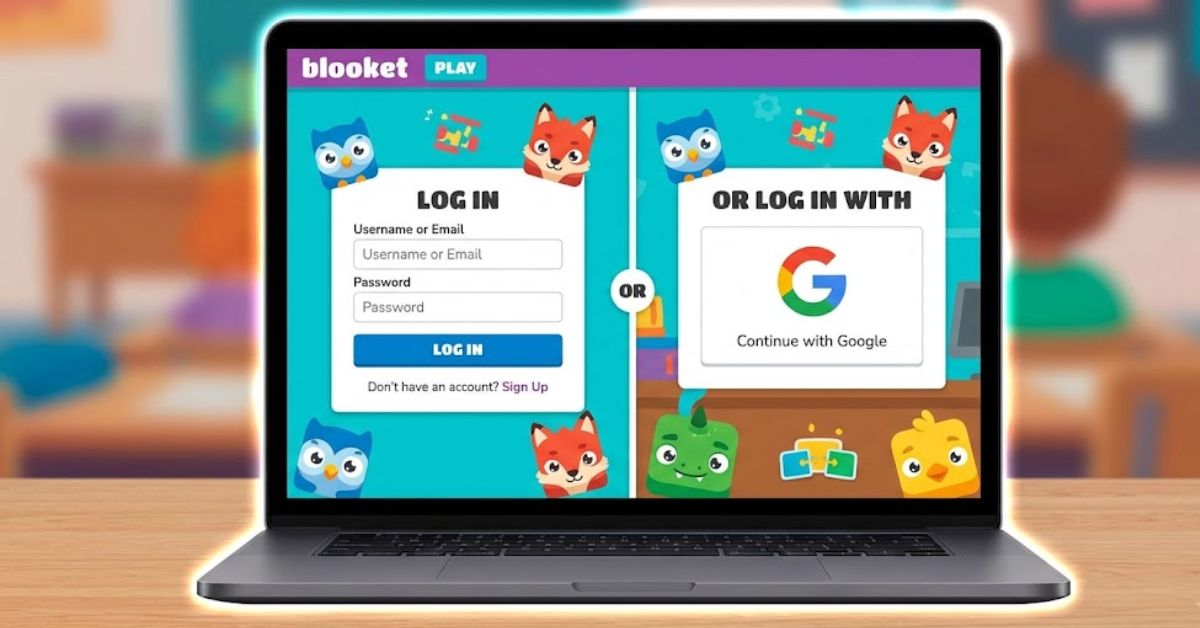
For an existing account, start with the official Blooket website and choose the login option. Avoid unofficial pages that imitate a sign-in screen. Blooket supports account access through its authentication system, including Google-based authentication for users whose accounts were created or connected through Google. School-managed Google accounts may also be subject to administrator permissions.
After authentication, users can access their Blooket account features. The exact dashboard options depend on the account and how Blooket is being used. Teachers may move directly to their sets or discover available question sets, while students with accounts can use account features related to Blooks, points, and their progress.
Basic sign-in steps
- Open the official Blooket website.
- Select Log In.
- Use the authentication method connected to your account.
- Enter the correct account credentials when requested.
- Complete authentication.
- Continue to your Blooket dashboard.
Quick login checklist
- Make sure you are using the official Blooket website.
- Use the same login method you originally used for the account.
- Check that your username is entered correctly.
- Confirm that your password is current.
- Ask your school administrator for help if a managed Google account is blocked.
Blooket Login vs. Joining a Game
One of the most common sources of confusion is assuming every student needs a Blooket login before participating. That is not how live Blooket games normally work. According to Blooket’s official instructions, students can participate using a Game ID, QR code, or shared join link without first creating an account.
When joining through the normal game process, a student may enter a nickname or receive a randomly generated name when that option has been enabled by the host. The student can then choose a Blook and wait for the teacher to begin the session. A signed-in account is optional for participating, although it can provide additional progress-related features.
How to join a Blooket game
- Open Blooket’s official game join page.
- Enter the Game ID supplied by the teacher, or use the QR code or join link.
- Follow the prompts on the screen.
- Enter a nickname if the host allows custom names.
- Choose a Blook when prompted.
- Wait for the host to start the game.
| Blooket Login | Blooket Join |
| Used for an existing account | Used to enter a live game |
| Requires account authentication | Usually requires a Game ID or invitation |
| Useful for teachers and account holders | Designed for game participants |
| Gives access to account features | Focuses on joining the current activity |
| May be needed for hosting | Account not normally required |
How Teachers Use Blooket After Login
Teachers get significantly more functionality after signing into an account. Blooket’s official teacher guide explains that question sets form the foundation of its games. Teachers can create their own sets or browse existing material and select a suitable set before choosing how they want students to interact with the questions.
When a teacher is ready to run a live activity, the basic hosting workflow involves selecting a question set, choosing Host, selecting an available game mode, configuring game settings, and starting the session. Students can then receive the information needed to join from their own devices. The available modes and specific settings can change as Blooket updates its platform.
Common teacher activities after sign-in
- Create educational question sets
- Browse existing question sets
- Select a game mode
- Host live classroom sessions
- Adjust game settings
- Review account-related information
- Manage saved educational content
For example, a science teacher could prepare a question set about ecosystems, choose a game mode, host the activity, and display the joining information to the class. Students would then enter the session from their devices rather than needing the teacher’s account credentials.
How to Fix Blooket Login Problems

If the Blooket login is not working, first check the simple causes. Blooket notes that usernames are case-sensitive, so capitalization matters when signing in with a username. The platform also reports that certain browser extensions, including some blocking extensions, can interfere with site functionality. These issues should be checked before assuming the account itself is broken.
School networks can create another problem. Blooket explains that access may occasionally be restricted by school network policies or Google Workspace settings. When the site displays an access-blocked message on a managed network, students may need help from the organization’s Google Workspace administrator or technology department rather than repeatedly changing their password.
| Problem | Possible Cause | What to Do |
| Password rejected | Incorrect or forgotten password | Use password recovery |
| Username rejected | Wrong capitalization | Check exact username |
| Google login blocked | School account restriction | Contact school administrator |
| Page partly stops working | Browser extension conflict | Test extensions/browser settings |
| Site connection issues | School network or firewall | Contact school IT department |
Forgot your Blooket password?
Blooket provides an official password recovery process. Users who are signed out can choose Forgot Password, enter the email address associated with their account, check their email for the reset code, and use that code to continue the password reset process.
Do not repeatedly guess passwords if you are unsure which one you used. Resetting through the official recovery process is generally faster and reduces the chance that you confuse credentials from different school or personal accounts.
Blooket Account and Login Tips
The safest starting point for any Blooket login is Blooket’s official website or official authentication page. This matters because login-related search terms can sometimes produce guides, tutorials, and unrelated third-party pages alongside the real platform. A guide can explain the process, but account credentials should only be entered into the legitimate Blooket authentication system.
Students using school-managed Google accounts may face restrictions that are outside their control. Blooket’s support documentation explains that Google Workspace administrators can manage whether Blooket is allowed to authenticate through school-controlled accounts. If a Google sign-in option works on a personal account but fails on a managed school account, administrator permissions may be the underlying issue.
Useful account habits
- Bookmark the official Blooket website.
- Never share your password with classmates.
- Double-check the account you are using before resetting a password.
- Use the game join option when you only need to enter a classroom game.
- Ask a teacher or school technology administrator about school-managed account restrictions.
- Keep your recovery email accessible when using an account.
Conclusion
The Blooket login process is straightforward once you know whether you actually need an account. Teachers and existing account holders should use Blooket’s official sign-in system to access their dashboard and account features. Students who only need to participate in a teacher-hosted live game can usually join with the provided Game ID, QR code, or link without signing in.
If access fails, check your credentials, username capitalization, authentication method, browser, and school network before assuming the service is unavailable. For forgotten passwords, use Blooket’s official recovery option. For school-controlled account restrictions, contact the appropriate administrator. Following the correct route makes accessing Blooket faster while avoiding unnecessary account creation or unreliable third-party login pages.